A weekly schedule describes what an employee is expected to work, not what the attendance camera saw. In Attface Attendance, you can assign that pattern through a schedule group or directly to one employee. The useful choice depends on whether people share a regular rotation. A one-day shift swap is a different question and belongs in a date-specific exception.
Choose a group when the weekly pattern is genuinely shared
An office team that works the same weekdays, or a production crew that follows the same rotation, is a good group candidate. Define the shifts first, then create one weekly group template and assign it to the relevant employees. This reduces repeated entry and gives administrators a recognizable name for the pattern. The Attface Attendance administration guide describes examples such as office, production, security and branch groups.
Check the seven days, including expected days off, before applying the group. A group should reflect a common rule, not merely a convenient collection of people. If two employees have different regular hours, putting them in the same group can hide a real scheduling difference until the attendance report is reviewed.
Choose an individual schedule for a lasting personal pattern
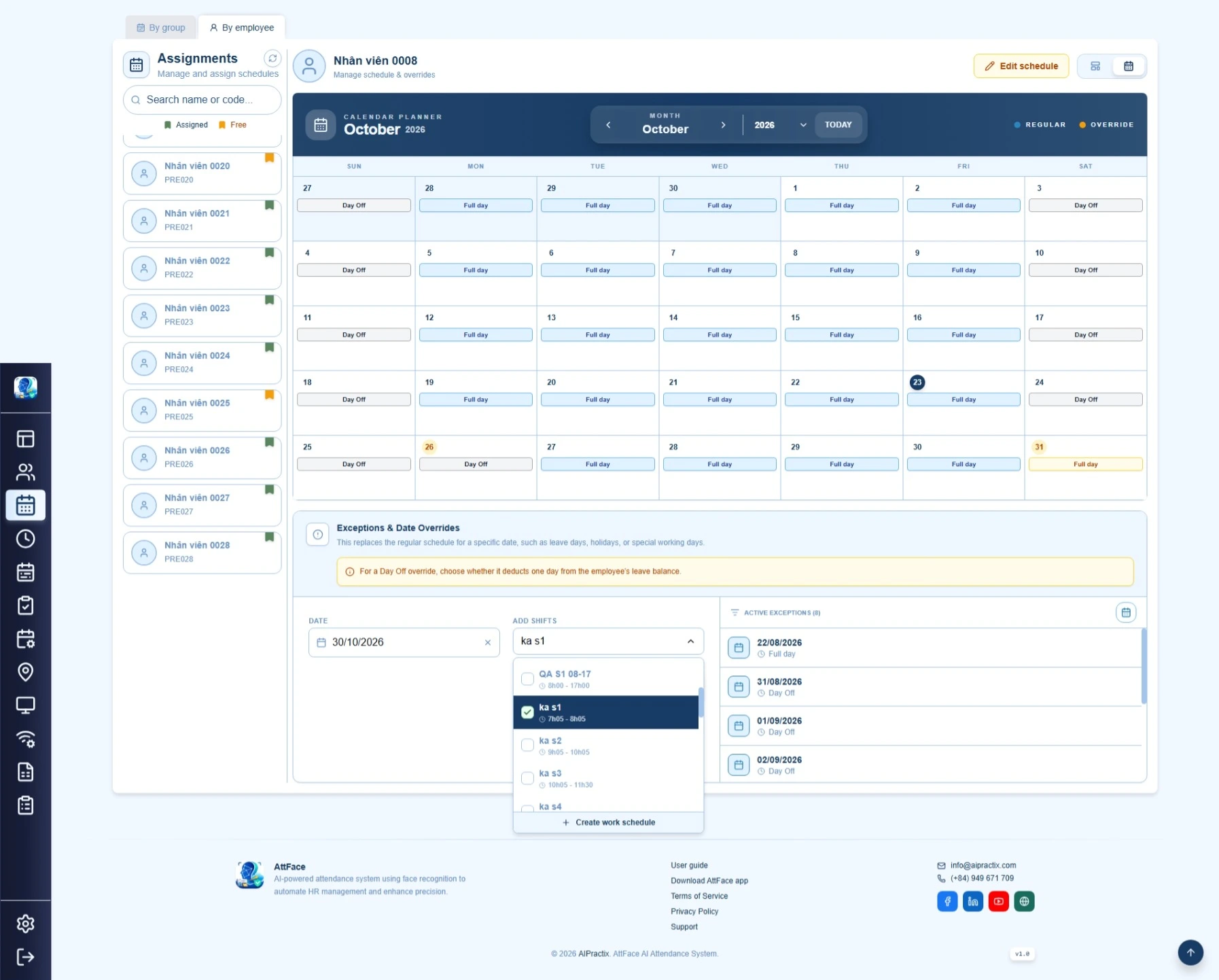
An individual schedule fits an employee whose recurring workdays or shifts differ from their team. Attface Attendance saves this assignment as a full seven-day snapshot from an effective date. Saving again for that same effective date replaces the schedule records at that timeline point, while earlier timeline points remain. This matters when changing a pattern: review all seven days, not just the one day you meant to edit.
For a single holiday, temporary cover shift or one-off absence, keep the regular weekly assignment and use a date override instead. Turning a one-day change into a new weekly snapshot makes the long-term schedule harder to understand.
Treat the effective date as part of the assignment
Group assignments also use a future effective date. According to the documented scheduling flow, applying a group expands its weekly template into employee schedules and replaces records for that same effective date. The effective date determines which pattern the report uses later; it is not a cosmetic label.
Before saving, identify the first date the new pattern should apply. For example, if a crew moves to a new rotation next Monday, create the new assignment for that Monday and inspect the employee's schedule timeline afterward. Avoid changing an earlier timeline point to solve a future problem.
Check the result for actual employees
After a group assignment, open a few representative employee profiles: one with a normal week, one with a day off and one who previously had a personal schedule. The dashboard can distinguish employees with no schedule, a group schedule or an individual schedule based on the latest timeline point. Confirm their effective date and each weekday before the first affected shift.
The decision rule is simple: use groups to distribute a stable shared pattern, individual schedules for a stable personal pattern, and date exceptions for temporary departures from either pattern. For the broader launch sequence, see the shift setup guide.