Face recognition records an event, but the work schedule gives that event meaning. Before the first employee checks in, an administrator should define where the event can happen, who the employee is, and which shift applies on that date. This order makes the first attendance report easier to review.
1. Set up locations and devices
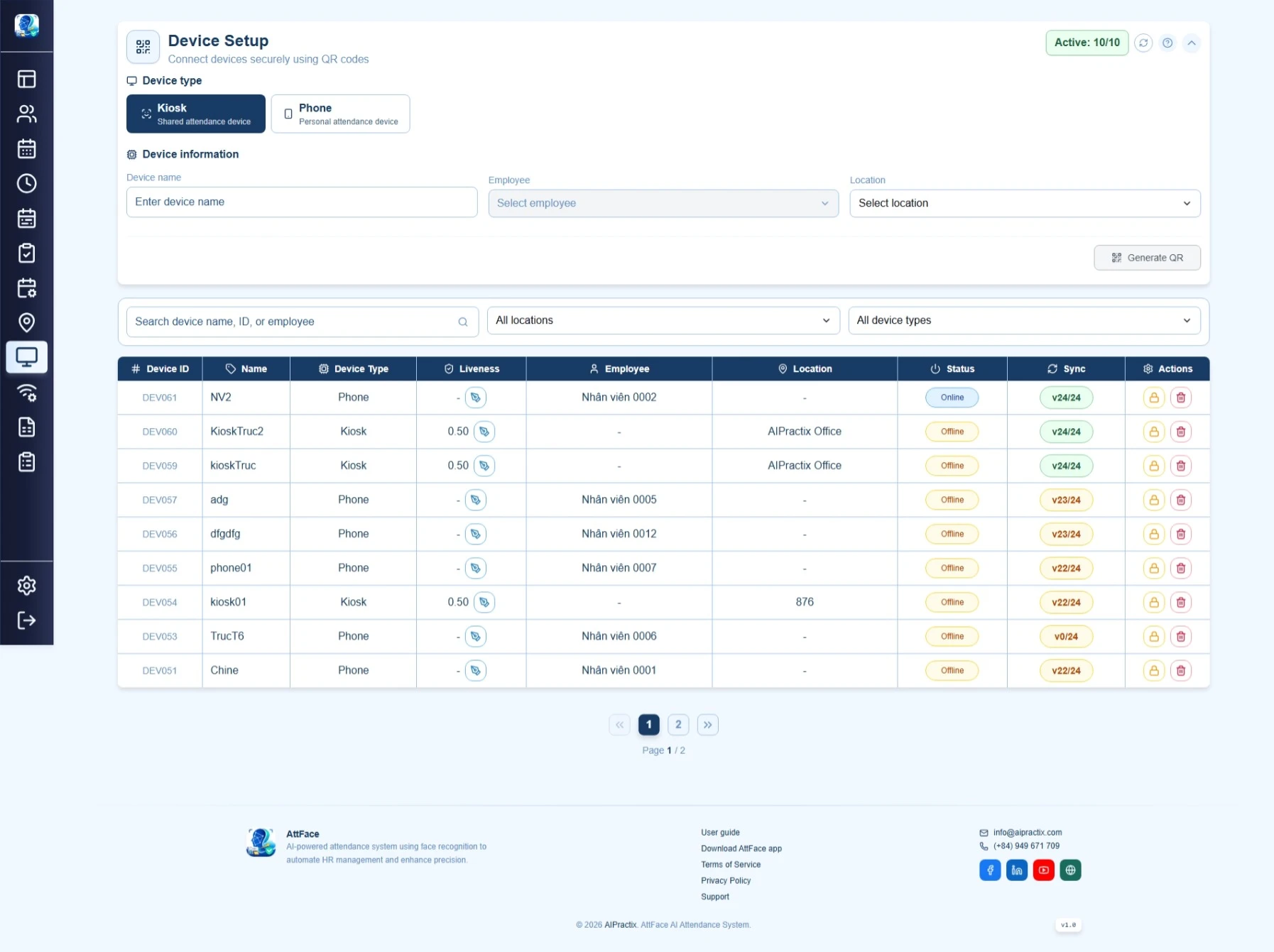
Create the workplace locations first. Then activate each kiosk or mobile attendance device running Android or iOS against the appropriate location. The Attface Attendance administration guide describes device activation, employee sync, face registration and attendance log submission. Check that a device appears under the intended location before employees start using it.
For a mobile attendance workflow, location and connected WiFi context can help operations review where an event was recorded. The documentation describes sending the single WiFi network currently connected to the device. This context supports review; it should not replace a clear policy for remote or field workers.
2. Add employees and build the weekly schedule
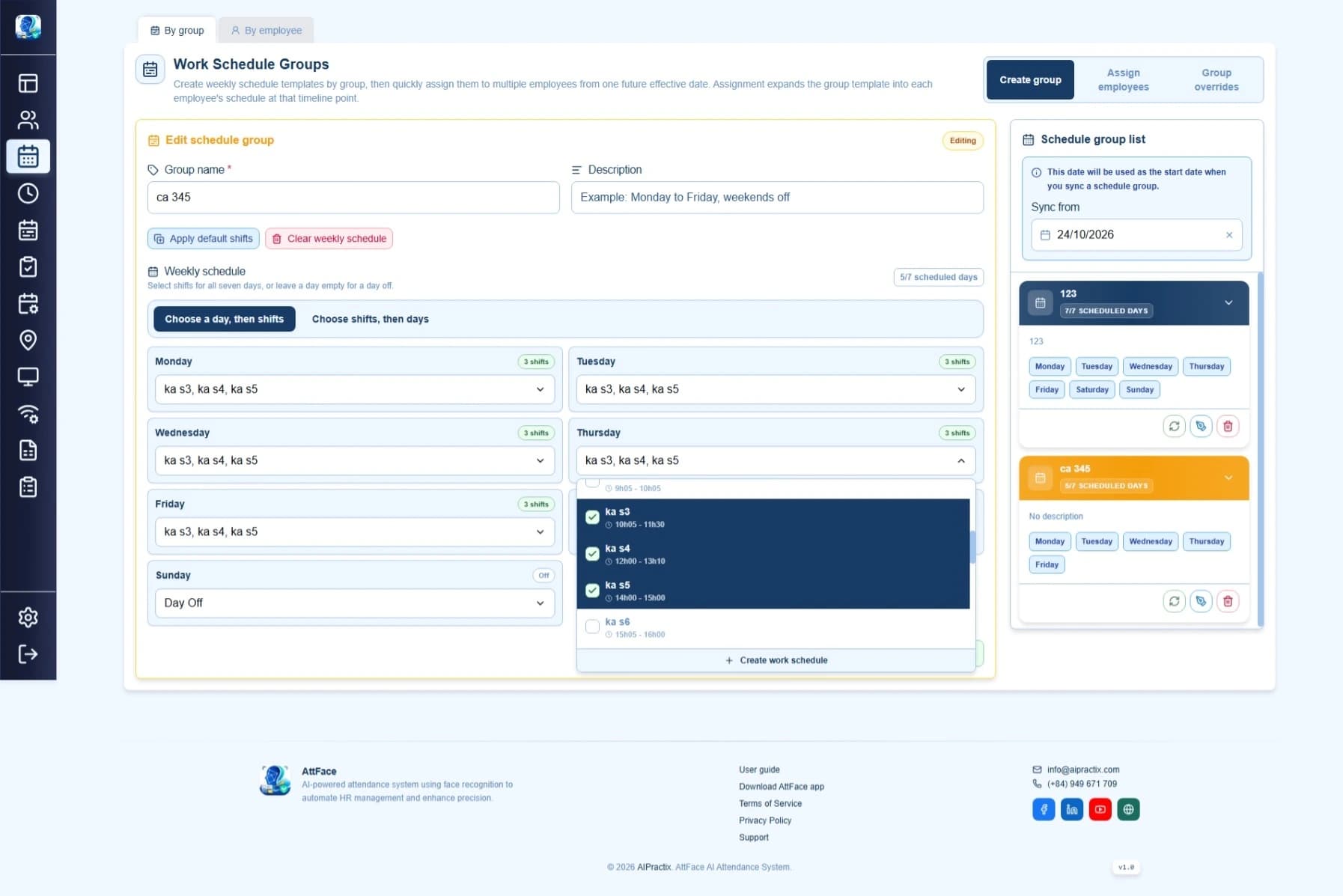
Create employee profiles or import them from CSV, then create shifts with start and end times. Assign a weekly schedule to each employee directly or through a schedule group. A group helps when many people follow the same pattern; an individual schedule handles exceptions in the regular rotation.
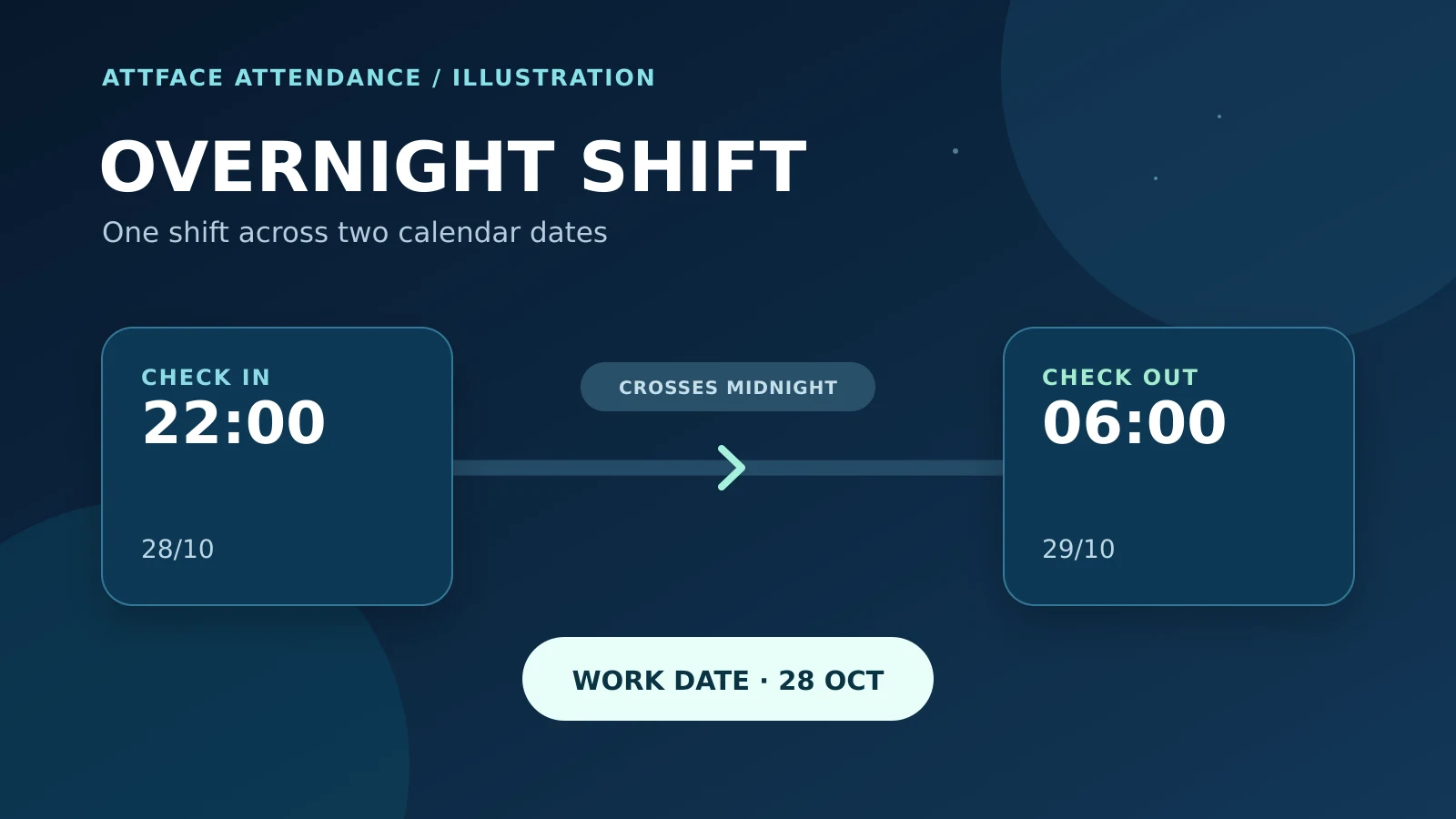
Attface Attendance uses an effective date for schedule assignments. Review the date carefully: a future change should not silently alter the meaning of past attendance. If your team has overnight shifts or multiple shifts in one day, test examples from those patterns before rollout.
3. Add date-specific exceptions
A weekly template cannot describe every holiday, shift swap or day off. Use date-specific schedule overrides when a particular day differs from the standard pattern. The documented administration flow supports employee and group overrides. Have a supervisor review changes before the affected date, especially when several employees share a group.
4. Reconcile the first report
After pilot check-ins, compare the full attendance log with the shift-based report. The log includes event and processing details; the report interprets events against assignments and overrides. If someone appears absent or late, inspect the assigned shift, effective date, exception and device event before editing the employee's record.
The Attface Attendance solution provides the broader product overview. A small pilot with representative shifts and devices is the fastest way to find setup mistakes before the workflow reaches the whole organization.